


 Ask a question
Undetected

Internal cheat for Rob Run
Description
Internal — a cheat for those who hate lag.
In Rob Run, everything comes down to response. While the overlay is loading, you’ve already been killed. Internal works differently: it’s inside the game process, not on top of it. The menu opens instantly, rendering doesn’t conflict with the window, and the crosshair reacts to taps without lag.
What’s inside
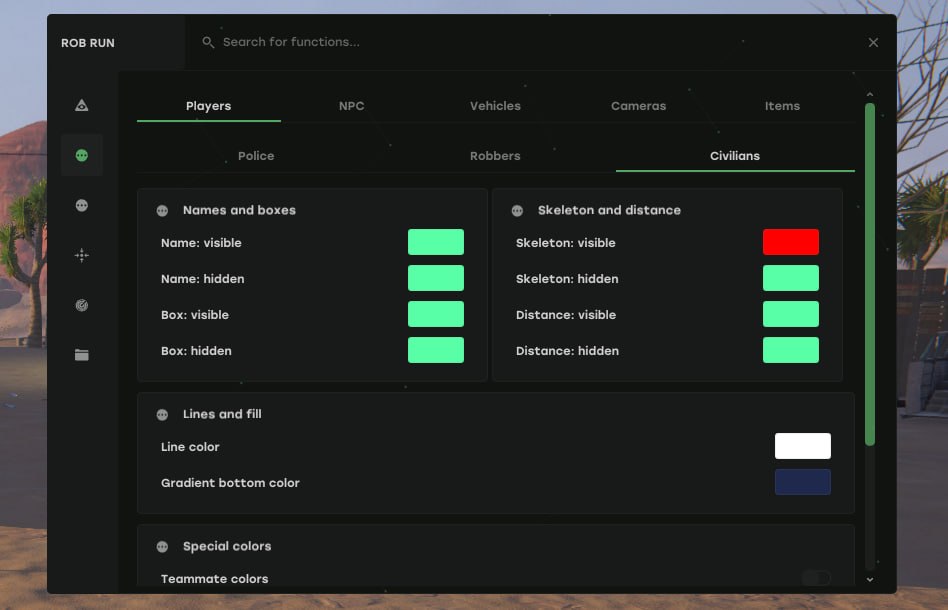
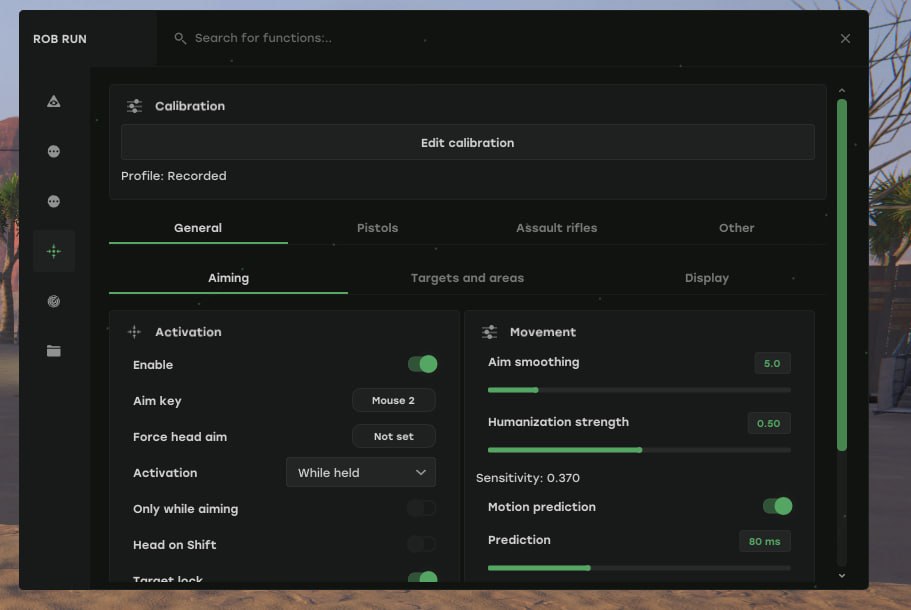
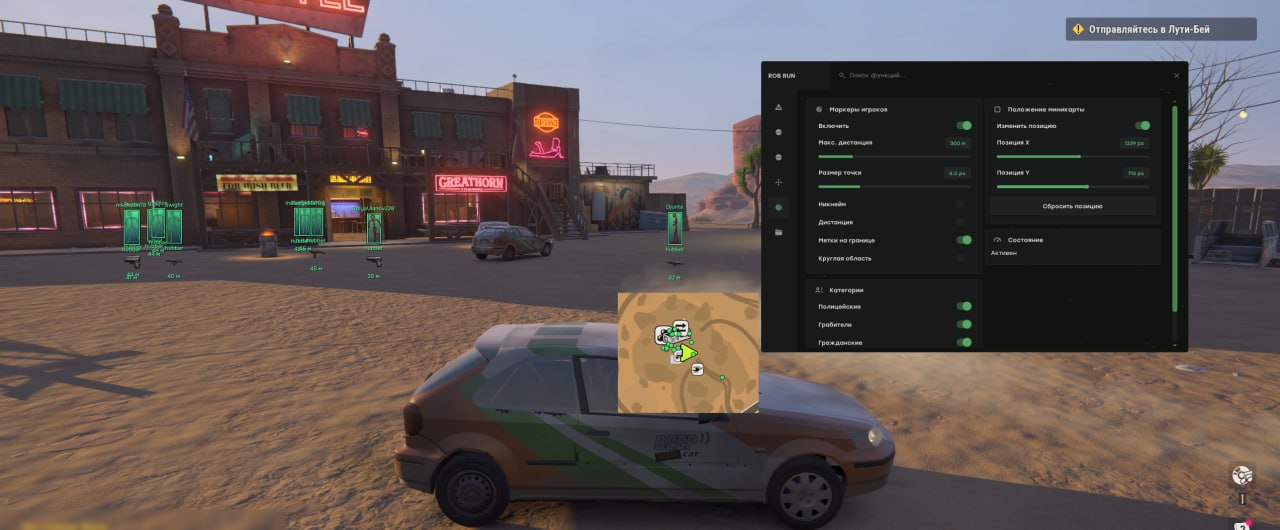
An aimbot with settings tailored to each weapon type: lock‑on zone, smoothness, movement prediction, bone selection. ESP for players and vehicles — frames, skeleton, HP, armor, distance. Radar with distance rings and viewing sector. Movement scripts, No Recoil, No Sway, No Spread.
Customization
Configs, themes, interface scale, language. The first fifteen minutes are spent adjusting — but after that, you don’t want to touch the cheat.
Briefly
Internal — for those who care about response time. The cheat doesn’t lag, doesn’t interfere, and doesn’t make you wait.
Media
System Requirements
- Supported game version: Steam
- Supported game mode: Windowed / Fullscreen in window / Fullscreen
- Supported Windows OS: 11x64
- Supported anti-cheats: In-game
- Supported processors: Intel and AMD (Xeon and FX support is not guaranteed)
- Support for invisibility in videos or screenshots: No
- USB flash drive required : No

All current functionality is below, screenshots and product descriptions above may differ from this list of functions.
CHECKOUT
Select the desired subscription plan
Don't like the commission? No suitable payment methods? Can't launch the cheat? Need a discount?
No problem! Click the button and write to the administrator who will solve any issue.
Category — separate settings for police, robbers, civilians and NPCs
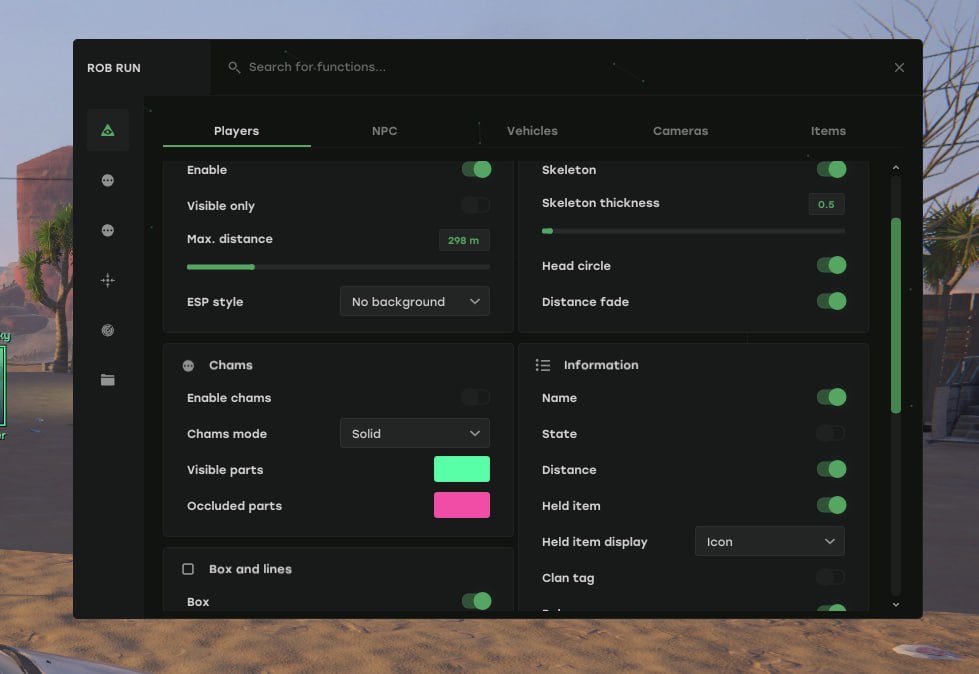
Enable — turns on ESP for players, NPCs, vehicles, cameras and items
Visible Only — shows only visible characters
Max. Distance — sets the ESP range for each category
ESP Style — labels with or without a background
Box — draws boxes around players and vehicles
Snapline — lines from a chosen point on the screen to characters and vehicles
Skeleton — shows the bones of players and NPCs
Skeleton Thickness — sets the line thickness
Head Circle — marks the character's head
Distance Fade — skeletons gradually fade with distance
Name — shows nicknames
State — information about the character's current state
Distance — distance to players and objects
Clan Tag — shows clan membership
Role — shows the player's role
Held Item — information about the item in use
Held Item Display — item name as text or as the in-game icon
In Vehicle — indicates that the player is in a vehicle
ID — shows the character ID
Downed Marker — marks knocked-down characters
Hide Dead — excludes dead characters from the ESP
Hide Teammates — excludes allied players
Hide Downed — excludes knocked-down characters
Box Style — regular or corner 2D box
Box Height — adjusts the height
Box Width — adjusts the width
Box Thickness — adjusts the outline thickness
Box Fill — fills the inner area
Fill Type — solid color or vertical gradient
Fill Opacity — adjusts the opacity
Line Origin — bottom, center or top of the screen
Enable Chams — colored highlighting of character models based on visibility, distance and filters
Chams Mode — solid fill, semi-transparent or glow
Visible Parts — color and transparency of the visible parts of the model
Occluded Parts — color and transparency of the model parts behind obstacles
Occupied Vehicles Only — shows vehicles with a driver or passengers
Hide Owned Vehicles — excludes your own vehicles
Hide Current Vehicle — excludes the vehicle the player is in
Vehicle Name — shows the vehicle name
Owner — information about the owner
Driver — information about the driver
Speed — shows the vehicle's speed
Status — information about the vehicle's condition
Hide Broken — excludes broken cameras
View Area — shows the camera's field of view
Zone Fill — colored highlighting of the view area
Zone Opacity — adjusts the highlight transparency
Hide Empty — excludes objects with no contents
Game Icons — original item icons when available
Rarity Colors — color-codes items by rarity
Group Nearby Items — merges loot labels that are close together
Detail Distance — sets the distance at which detailed information is shown
Crosshair Area — sets the focus area around the crosshair
Max. Labels — limits the number of names shown
Objects — separate toggles for different types of in-game loot
Loot Categories — filters items by type
Sell Price — shows the value, taking the item quantity into account
Container Marker Color — colors a container by the highest known rarity of its contents
Loot — shows regular loot
Loot Nodes — shows loot spawn locations
Cargo — highlights cargo objects
Cash Chargers — shows cash chargers
Map Items — highlights items in the game world
Containers — shows containers and the available information about their contents
Cash — shows cash objects
Cargo Chargers — highlights cargo chargers
Weapons — shows weapons
Ammo — shows ammunition
Armor — shows armor
Equipment — shows equipment
Medical Items and Consumables — shows medical items and consumables
Keys and Tools — shows keys and tools
Valuables and Cash — shows valuables and cash items
Other — shows the remaining loot categories
Category — choose the profile for police, robbers, civilians, NPCs, vehicles, cameras or items
Character ESP / Character ESP — Enables and disables highlighting for all character categories
Local Player / Local character - display of your own character
Battle Mode Key / Battle Mode Key - Toggles Battle Mode, default F6
No Recoil / No Recoil - suppresses weapon recoil
No Sway / No Sway - eliminates weapon sway
Quickly switch between normal and combat display modes
When activated, NPCs and civilians are temporarily hidden from ESP and radar, and the display of loot, cameras, and their viewing areas is disabled.
Pressing again returns to the previous settings.
Enable — turns on aim assistance when calibrated
Aim Key — assigns the activation key
Force Head Aim — a separate key for priority head aiming
Activation — hold a key or always on
Only While Aiming — works only in ADS mode
Head on Shift — switches the aim point to the head while Shift is held
Target Lock — stays on the selected target
Max. Distance — limits the target search range
Target Switch Delay — sets the time for switching between enemies
Aim Smoothing — adjusts movement smoothing
Humanization Strength — adjusts the influence of recorded mouse movements
Motion Prediction — leads the target based on its movement
Prediction — sets the prediction time in milliseconds
Targets — choose police, robbers, civilians and NPCs
Ignore Dead — excludes dead characters
Ignore In Vehicles — excludes passengers and drivers
Ignore Downed — excludes knocked-down characters
Selection Method — chosen body parts or the nearest suitable point
Multipoints — extra aim points with their own visibility check
Selected Areas — sets the allowed body parts
Nearest Point — picks the visible point closest to the crosshair center
Head — aims at the head area
Neck — aims at the neck area
Torso — aims at the torso area
Pelvis — aims at the pelvis area
Similar cheats


Instructions
Internal · updated 27.11.26
Open